
AppleScript ➞ Automator ➞ Shortcuts
[比較]
- iOS: Apple’s Shortcuts
- Android: Google’s Action Blocks
Guiding principle: keep automation simple and intuitive. If a workflow is complex, package it as a custom Shortcut and call it with the “Run Shortcut” action. This makes sharing and maintainability much easier.
-
“Take Screenshot” + “Extract Text from Image” (for OCR)
-
Get “Item” from List → Options: “First Item”, “Last Item”, *“Random Item”, “Item at Index”, “Items in Range”
-
Get random items from List
- Single: “Get Item from List” → Choose “Random Item”
- Multiple: “Filter Files” → Choose “Random” in “Sort by” → Enable “Limit” → Select the number of random items you want to get
-
“Is Charging” vs “Is Connected to Charger” (Get Battery Status)
- Former: Is the device gaining battery charge?
- Latter: Is the device connected to a charger that at least is slowing down the rate the battery drains?
For Optimized Battery Charging: being connected to a charger but not charging
-
Shortcut icon: use the “Get Images from Input” action
-
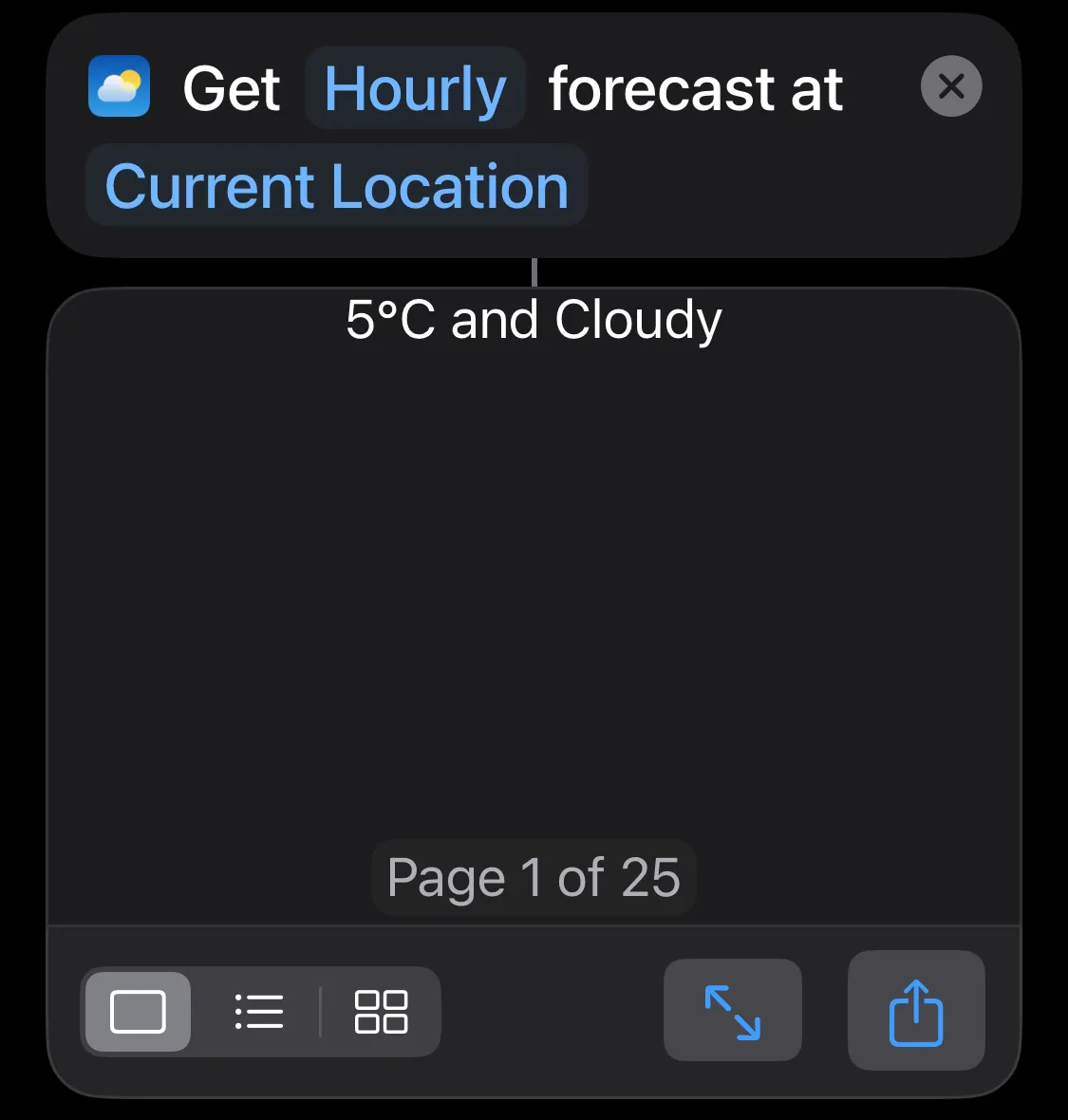
Hourly: Retrieves results for the next 24 hours in a list of 25 items—the first represents the current conditions, followed by the forecasts for the next 24 hours.
-
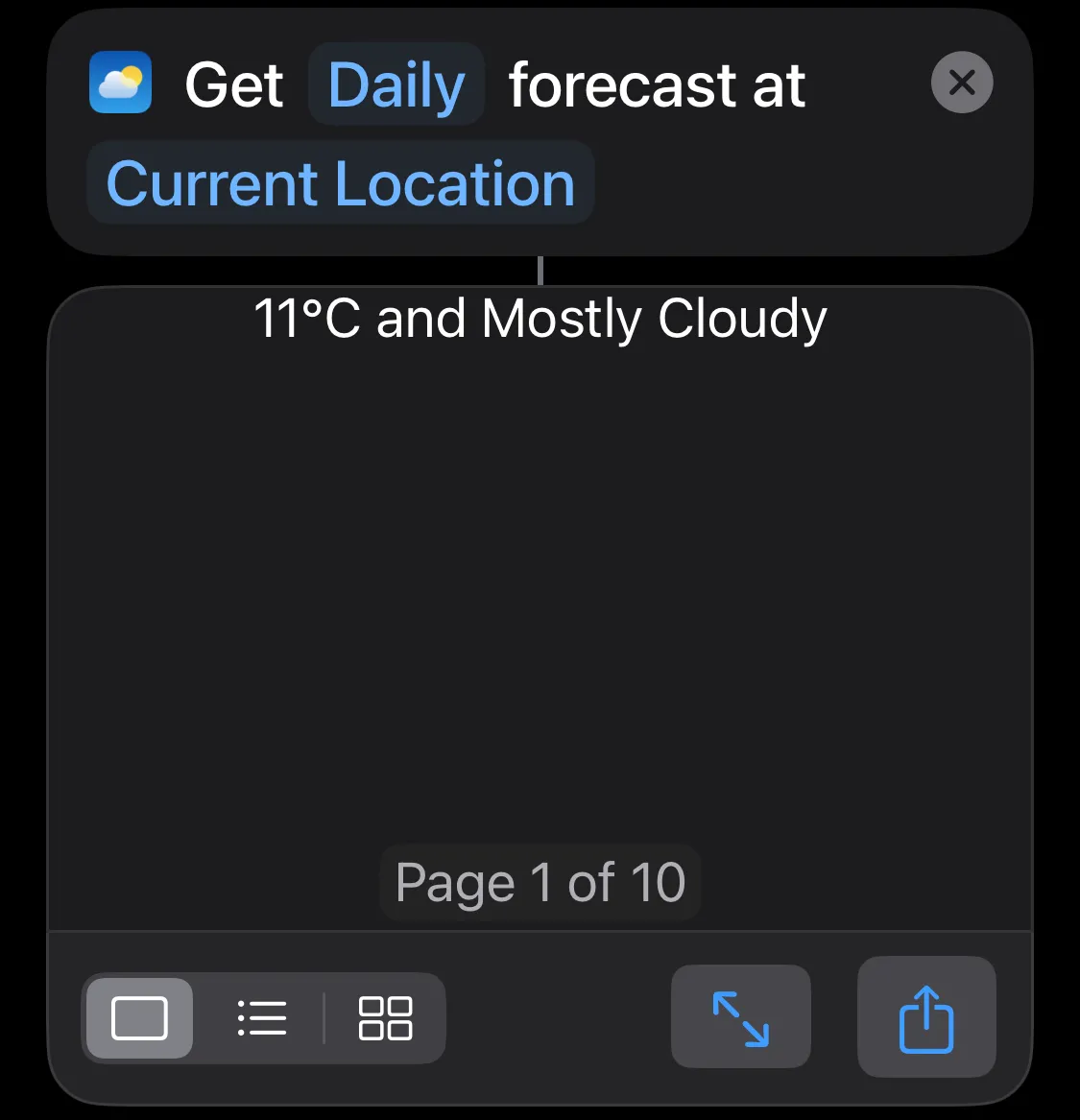
Daily: Retrieves results for the next 10 days in a list of 10 items.
- Comma-separated text
- Each item is encoded
- A great way of storing multiple pieces of information at once; in Shortcuts it is converted into a JSON plain-text object
- “Get Dictionary Value” → Options: “Value”, “All Keys”, “All Values”
- Often: “Choose from List” + “All Keys”
- Tip: “Choose from List” can also be used for a “Dictionary”!
- Get “Value” for “Chosen Item → Name” from “Dictionary”
- Tip: “Choose from List” can also be used for a “Dictionary”!
- Often: “Choose from List” + “All Keys”
- How to use Boolean variables?
- Method I: Type = Boolean →
If "myBooleanVar" - Method II: Type = Text →
If "myBooleanVar" is Yes/No
- Method I: Type = Boolean →
Apple’s Uniform Type Identifiers (UTIs)
- A framework used in macOS and iOS for identifying data types and file formats in a standardized and consistent way.
- Strings that uniquely identify types of data.
- Examples
- Public UTIs
public.textpublic.imagepublic.json
- Private UTIs
com.example.myapp.myformatcom.adobe.pdcom.apple.plist=com.apple.property-listcom.apple.shortcuts.action
- Public UTIs
- “Add to Variable” → List
- Tip: “Repeat with each item” + “Text” → “Repeat Results” is already a list of “Text”, not need to use “Add to Variable” for each iteration → simplify code!
- Magic variables
- Tip: If you’d like to run one shortcut from another shortcut, use the
Run Shortcutaction instead of a URL scheme. You should only run shortcuts with a URL if you’re integrating from another app outside of Shortcuts (e.g., in a shell script, in Terminal) - Run Shortcut vs URL Scheme
- Difference
- URL Scheme requires to open the Shortcuts app, while Run Shortcut doesn’t.
- Difference
- “Open X-Callback URL” (= URL_Schemes)
- Allow you to go beyond “Open App” in Shortcuts
- They are helpful in the Shortcuts app when the App itself doesn’t have any Shortcut Actions support available by default
- Run a shortcut using a URL scheme on iPhone or iPad
- Import Shortcut:
shortcuts://import-shortcut/?url=[url]&name=[name]- Parameters:
- url: download url for a
.shortcutfile - name (optional): name for shortcut, defaults to shortcut filename
- silent (optional):
trueto import without opening the shortcut,falseby default to open and display the shortcut to the user
- url: download url for a
- Example:
shortcuts://import-shortcut/?name=Awesome%20Shortcut&url=https%3A%2F%2Fdownloadwebsite.com
- Parameters:
- Open Shortcut:
shortcuts://to launch app to last-used stateshortcuts://create-shortcutto create a new shortcutshortcuts://open-shortcut?name=[name]to open the app to the shortcut of a given name
- Run Shortcut:
shortcuts://run-shortcut- ⭐️ Query parameters:
- name: string name for shortcut
- input (optional): initial input into the shortcut, a text string or the word
clipboardto use the contents of the clipboard
- Example:
shortcuts://run-shortcut/?name=Shortcut%20to%20Run
- ⭐️ Query parameters:
shortcuts://x-callback-url/run-shortcut?name=[name]&x-success=[your-application-url]- Callback URL work with 3 parameters:
x-success— To handle Successful executionx-cancel— To handle interruptions in executionx-error— To handle errors in execution
- Callback URL work with 3 parameters:
- Open the Shortcuts Gallery
shortcuts://gallery
- Search the Shortcuts Gallery
shortcuts://gallery/search?query=[query]
- Import Shortcut:
- [比較]
Open X-Callback URL: If your Shortcut has to wait for responseOpen URLs: If your Shortcut doesn’t have to wait for response
Two ways to set and view binding keyboard hotkeys for Shortcuts
- Settings → Keyboard → Keyboard Shortcuts → Services → Shortcuts
- Shortcuts App on macOS → “Quick Actions” in the sidebar
There are only four subcommands in the command-line (CLI) version of shortcuts://run-shortcut from Terminal: list, run, view, sign
shortcuts list- Prints every shortcut name, one per line. Quote names that contain spaces or emoji.
-f, --folder-name <folder-name|identifier>— restrict to one folder; passnonefor shortcuts that live outside any folder--folders— list folder names instead of shortcuts--show-identifiers— prefix each entry with its stable identifier, whichrunandviewaccept in place of the name- Recipes
- Count them:
shortcuts list | wc -l - Find one:
shortcuts list | grep -i backup - What sits in a folder:
shortcuts list --folder-name 'Shortcutomation' - Which folders exist:
shortcuts list --folders
- Count them:
shortcuts run <name-or-identifier>- Blocks until the shortcut finishes; exit code is non-zero on failure, so
&&/||work -i, --input-path <file>— feed a file in as the shortcut’s input-o, --output-path <file>— write the shortcut’s output to a file--output-type <UTI>— force the result type, e.g.public.json,public.html- Example:
shortcuts run "Shortcutomation - shortcut to html" -i a.json -o a.html - The first call from a given app triggers the one-time Automation permission prompt (System Settings → Privacy & Security → Automation)
- Blocks until the shortcut finishes; exit code is non-zero on failure, so
shortcuts view <name>— opens that shortcut in the app; the only navigation the CLI offersshortcuts sign --input a.shortcut --output signed.shortcut [--mode anyone|people-who-know-me]— signs a.shortcutfile for sharing;people-who-know-meis the default mode
- Each
shortcuts runis its own process. A shell loop over 400 shortcuts spawns 400 of them, and everyRun Shortcutaction inside a workflow spawns more again — they linger in Activity Monitor and the run gets progressively slower shortcuts listreads the local store, so shortcuts created on another device only show up once iCloud sync lands
- https://sixcolors.com/post/2021/12/run-shortcuts-from-the-mac-command-line
- https://support.apple.com/guide/shortcuts-mac/run-shortcuts-from-the-command-line-apd455c82f02/mac
What do iCloud Shortcut share links actually link to?
- It’s a link to a point-in-time snapshot at the time you shared it. Any further changes you make will not be reflected in that link.
- It’s permanent, so make a copy and remove the personal information before sharing.
- It presumably gets uploaded to the generic iCloud server that doesn’t belong to anyone’s account, along with some metadata. Although it’s still tied to your account (and that’s why you’re able to stop sharing at any time), no one sees the account info from the shortcut. You can check the metadata by inserting
/api/records/to the iCloud URL → Change the url part fromicloud.com/shortcuts/<identifier>toicloud.com/shortcuts/api/records/<identifier>, then you could access a dictionary including a download url.
- Time limitation: a running shortcut will only stay active for a short period of time (around 3 mins) when you are away from the Shortcuts application
- 如何透過 Siri 呼叫 “Ask for Input” (not just “Dictate Text”) 指令? Add “Dismiss Siri and Continue” in the very beginning
